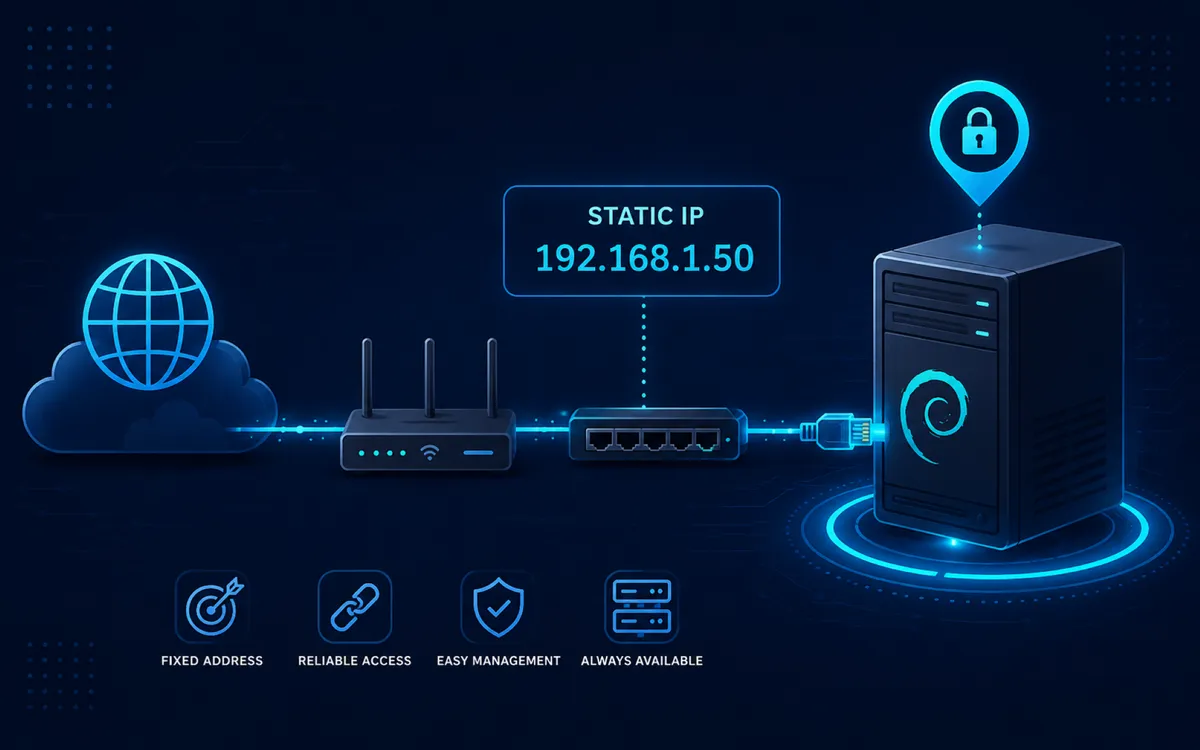
Debian servers normally need a predictable network address. Services such as SSH, Docker, Samba, web servers, databases, and other systems on your network need to know where to find the server, which becomes difficult if its IP address can change.
A static IP address solves this problem by assigning the server a fixed address instead of allowing a DHCP server to choose one automatically.
This guide explains how to configure a static IPv4 address on a Debian 13 server using the traditional ifupdown networking system and /etc/network/interfaces.
The example configuration will use:
Interface:  enp4s0
IP address: 192.168.1.50
Subnet:     /24
Gateway:    192.168.1.1
DNS:        1.1.1.1 and 1.0.0.1
Replace these values with settings appropriate for your network.
Requirements
Before starting, you will need:
- A Debian 13 system
- A wired network connection
- A user account with
sudoprivileges or root access - The name of the network interface
- An available IP address on your network
- Your subnet prefix
- Your router or default gateway address
- The DNS servers you want to use
If you are connected to the server through SSH, use extra care when changing its network configuration. An incorrect IP address, subnet, or gateway can immediately disconnect the SSH session.
Whenever possible, have local console access available before changing the network configuration of a remote server.
Before You Begin
Most home and small-business networks use DHCP to automatically assign network settings to devices.
When a Debian system starts with DHCP enabled, a DHCP server—usually your router—provides information such as:
- IP address
- Subnet
- Default gateway
- DNS servers
This is convenient for workstations and other client devices, but servers generally benefit from having an address that does not change.
There are two common ways to accomplish this:
- Configure a DHCP reservation on the router.
- Configure a static IP address directly on Debian.
A DHCP reservation still uses DHCP, but instructs the DHCP server to always provide the same address to a particular network adapter. A true static configuration stores the IP information directly on the Debian system.
This guide uses the second method.
Before selecting an address, make sure it will not be assigned to another device. Ideally, use an address outside the DHCP pool configured on your router or exclude the address from that pool.
Why This Works
On a Debian server using ifupdown, persistent network configuration is stored in:
/etc/network/interfaces
An interface configured for DHCP might look similar to this:
auto enp4s0
iface enp4s0 inet dhcp
The auto directive tells Debian to bring the interface up automatically during system startup.
The iface directive describes how the interface should be configured. In this example:
inet dhcp
means that IPv4 configuration should be obtained through DHCP.
For a static address, this is changed to:
inet static
The address and default gateway are then explicitly defined.
For example:
auto enp4s0
iface enp4s0 inet static
    address 192.168.1.50/24
    gateway 192.168.1.1
Debian will then configure the interface with those values whenever the interface is brought up.
Step 1: Identify the Network Interface
Before editing the network configuration, determine the name Debian assigned to the network adapter.
Run:
ip address
The ip address command displays the network interfaces and the addresses currently assigned to them.
A typical Ethernet interface might appear as:
2: enp4s0: <BROADCAST,MULTICAST,UP,LOWER_UP>
    inet 192.168.1.125/24
In this example, the interface name is:
enp4s0
Modern Debian installations generally use predictable interface names such as:
enp1s0
enp3s0
enp4s0
ens18
Your interface name may be different.
You can also display a shorter summary with:
ip -br address
The -br option produces a brief view that is often easier to read:
lo       UNKNOWN  127.0.0.1/8
enp4s0   UP       192.168.1.125/24
Record the name of the active interface before continuing.
Step 2: Determine the Current Gateway
Next, determine which router Debian currently uses as its default gateway.
Run:
ip route
A typical result looks like:
default via 192.168.1.1 dev enp4s0
192.168.1.0/24 dev enp4s0 proto kernel scope link src 192.168.1.125
The important line is:
default via 192.168.1.1 dev enp4s0
This indicates that:
192.168.1.1is the default gateway.enp4s0is the interface used to reach it.
Record the gateway address.
The second route also confirms that this example network uses the 192.168.1.0/24 subnet.
Step 3: Choose the Static IP Address
Choose an unused IP address on the same subnet as the server's gateway.
For this example:
Network:  192.168.1.0/24
Gateway:  192.168.1.1
Static IP: 192.168.1.50
A /24 network commonly contains usable host addresses from:
192.168.1.1
through:
192.168.1.254
The network address 192.168.1.0 and broadcast address 192.168.1.255 should not be assigned to hosts.
Also verify that 192.168.1.50 is not already being used by another device and will not be distributed by your DHCP server.
If your router's DHCP pool is:
192.168.1.100 - 192.168.1.200
using an address such as 192.168.1.50 may be appropriate because it falls outside that pool.
The exact address range depends on your network configuration.
Step 4: Back Up the Existing Configuration
Before modifying the network configuration, create a backup.
Run:
sudo cp /etc/network/interfaces /etc/network/interfaces.backup
This copies the current configuration to:
/etc/network/interfaces.backup
If something goes wrong, you can restore it with:
sudo cp /etc/network/interfaces.backup /etc/network/interfaces
Creating this backup is especially useful when working remotely because a small configuration error can prevent the server from reconnecting to the network after a reboot.
Step 5: Configure the Static IP Address
Open the network configuration file:
sudo nano /etc/network/interfaces
A DHCP configuration may currently resemble:
source /etc/network/interfaces.d/*

auto lo
iface lo inet loopback

allow-hotplug enp4s0
iface enp4s0 inet dhcp
Change the Ethernet interface to use a static configuration.
For example:
source /etc/network/interfaces.d/*

auto lo
iface lo inet loopback

allow-hotplug enp4s0
iface enp4s0 inet static
    address 192.168.1.50/24
    gateway 192.168.1.1
The important settings are:
iface enp4s0 inet static
This tells ifupdown to configure enp4s0 with a static IPv4 configuration rather than requesting one through DHCP.
The following line defines the server's IPv4 address and subnet:
address 192.168.1.50/24
CIDR notation combines the IP address and subnet prefix. A /24 prefix corresponds to the subnet mask:
255.255.255.0
The final line defines the router used to reach networks outside the local subnet:
gateway 192.168.1.1
Do not copy these addresses unless they match your own network.
Save the file in Nano with Ctrl+O, press Enter, and exit with Ctrl+X.
Step 6: Check the Configuration Before Applying It
Before restarting networking, ask ifupdown to parse the interface configuration.
Run:
sudo ifquery enp4s0
Replace enp4s0 with your actual interface name.
The output should reflect the static configuration you entered.
You can also perform a dry run with:
sudo ifup --no-act enp4s0
The --no-act option shows what ifup would do without actually changing the interface.
This is useful for catching obvious configuration problems before interrupting the active network connection.
Step 7: Apply the New Network Configuration
The safest method for a remotely administered server is often to reboot after verifying the configuration:
sudo reboot
During startup, Debian will configure the interface using the static settings stored in /etc/network/interfaces.
If you have direct console access and want to apply the change without rebooting, you can bring the interface down and back up:
sudo ifdown enp4s0
sudo ifup enp4s0
Be careful when doing this over SSH.
Running ifdown on the interface carrying your SSH connection will immediately disconnect the session. You will then need to reconnect using the new static IP address.
For that reason, rebooting is generally easier when configuring a remote server, provided you have verified the configuration first.
Step 8: Verify the Static IP Address
After the server restarts, log in using its new IP address.
Check the assigned addresses:
ip -br address
You should see the static address associated with the interface:
enp4s0 UP 192.168.1.50/24
Next, verify the routing table:
ip route
You should see a default route similar to:
default via 192.168.1.1 dev enp4s0
This confirms that Debian knows to send traffic destined for other networks through the router.
Verification
Several tests can confirm that the complete network configuration is working.
First, test communication with the local gateway:
ping -c 4 192.168.1.1
The -c 4 option tells ping to send four packets and then stop.
Successful replies confirm that the server can communicate with the local network and router.
Next, test connectivity to the internet using an IP address:
ping -c 4 1.1.1.1
If this succeeds, the IP address, subnet, and default gateway are functioning correctly.
Finally, test DNS resolution:
ping -c 4 debian.org
If the server can reach 1.1.1.1 but cannot resolve debian.org, the network connection itself is working and the problem is likely related to DNS configuration.
A working static configuration should satisfy the following checklist:
- The expected static IP appears in
ip -br address - The default gateway appears in
ip route - The gateway responds to
ping - An external IP address is reachable
- Domain names resolve correctly
- SSH or other server services are reachable at the new address
- The address remains the same after a reboot
Troubleshooting
The Interface Does Not Have the New Address
Check the interface configuration:
cat /etc/network/interfaces
Verify that the interface name exactly matches the name reported by:
ip -br link
For example, configuring enp3s0 will have no effect if the actual adapter is named enp4s0.
Also verify that the interface is configured with:
inet static
rather than:
inet dhcp
The Server Cannot Reach the Router
Check the configured subnet and gateway.
For example, this configuration:
address 192.168.1.50/24
gateway 192.168.1.1
places both addresses on the same /24 network.
An incorrect subnet prefix can cause Debian to treat the gateway as being on another network.
Also confirm that the Ethernet link is active:
ip link show enp4s0
Look for:
state UP
and, on a connected Ethernet interface:
LOWER_UP
Local Networking Works but There Is No Internet Access
Inspect the routing table:
ip route
Confirm that it contains a default route:
default via 192.168.1.1 dev enp4s0
If the default route is missing, check the gateway entry in /etc/network/interfaces.
IP Addresses Work but Domain Names Do Not
If:
ping -c 4 1.1.1.1
works but:
ping -c 4 debian.org
does not, investigate DNS configuration.
View the current resolver configuration with:
cat /etc/resolv.conf
The file should contain a valid DNS resolver for the way DNS is managed on your system.
Do not assume that /etc/resolv.conf should always be edited directly. Depending on the installed networking and resolver components, the file may be generated automatically.
The Server Became Unreachable After Reboot
Use local console access if available and inspect:
ip -br address
and:
ip route
If necessary, restore the configuration backup:
sudo cp /etc/network/interfaces.backup /etc/network/interfaces
sudo reboot
The server should return to its previous network configuration after rebooting.
Common Questions
Should I Use a Static IP or a DHCP Reservation?
Both approaches can provide a predictable server address.
A static IP configured directly on Debian keeps the network identity under the server's control and does not depend on the DHCP server to provide the address.
A DHCP reservation centralizes address management on the router or DHCP server and can be easier to maintain on networks with many devices.
For a permanent server or home-lab host, either approach is reasonable. Avoid configuring the same address statically on Debian while also allowing the DHCP server to assign that address to another device.
Should the Static Address Be Outside the DHCP Range?
Usually, yes.
Keeping manually assigned addresses outside the DHCP pool reduces the chance that the DHCP server will give the same address to another device.
Another option is to explicitly exclude or reserve the address in the DHCP server's configuration.
Do I Need to Specify a Broadcast or Network Address?
Normally, no.
With CIDR notation such as:
address 192.168.1.50/24
the necessary network information can be derived from the prefix. A typical Debian static configuration therefore does not need separate network, netmask, or broadcast entries.
Can I Assign More Than One IP Address to the Same Network Adapter?
Yes.
Linux can assign multiple IPv4 addresses to a single physical network interface. This can be useful when hosting services on separate addresses without installing additional network adapters.
That configuration is different from the basic single-address setup covered in this guide.
Final Thoughts
A static IP address gives a Debian server a predictable location on the network, making it easier to manage services such as SSH, Docker containers, file shares, reverse proxies, databases, and self-hosted applications.
On a Debian 13 server using ifupdown, the configuration is straightforward: identify the correct network interface, select an unused address, replace DHCP with a static configuration in /etc/network/interfaces, and verify the address and routing after applying the change.
The most important part is planning the address before making the change. Make sure the address belongs to the correct subnet, does not conflict with another device, and will not be distributed to another client by your DHCP server.
About This Guide
This guide explains how to configure a persistent static IPv4 address on a Debian 13 server using ifupdown and /etc/network/interfaces. It is intended for Linux administrators, self-hosters, developers, and home-lab users who need a predictable network address for server services.