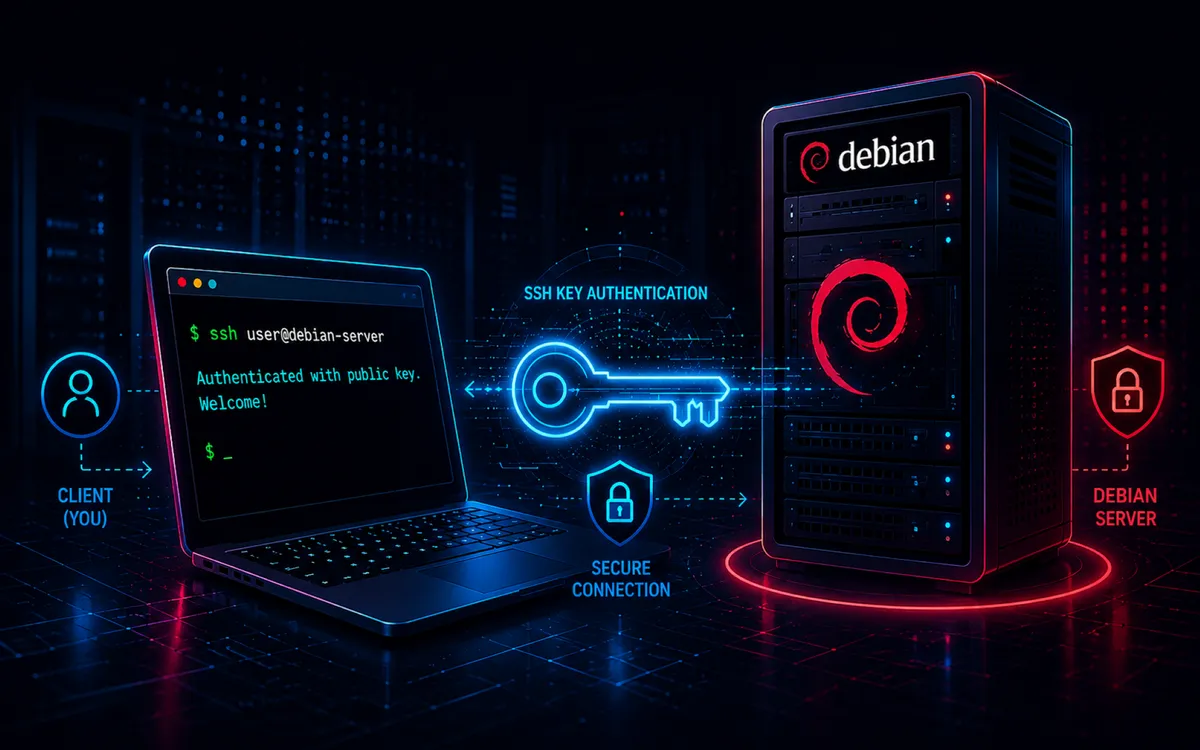
Secure Shell (SSH) is the standard method for remotely administering Linux servers. By default, SSH can authenticate users with a password, requiring you to enter the account password each time you connect.
For systems you access regularly, SSH key-based authentication provides a more secure and convenient alternative. Instead of sending a password, your computer proves its identity using a cryptographic key pair. Once configured, you can connect to your Debian 13 server without entering the remote account password.
This guide explains how to create an SSH key pair, install the public key on a Debian 13 server, verify passwordless authentication, and optionally disable SSH password authentication entirely.
Requirements
Before starting, you will need:
- A Debian 13 server with OpenSSH Server installed
- A user account on the Debian server
- SSH access to the server using your current authentication method
- A client computer with an SSH client
- Network connectivity between the client and server
sudoprivileges if you plan to modify the SSH server configuration
The client computer can run Linux, macOS, or Windows. Modern versions of all three operating systems include an OpenSSH client.
Before You Begin
SSH key authentication uses two related cryptographic keys:
- Private key — Remains on your client computer and should never be shared.
- Public key — Copied to the Debian server and can safely be distributed to systems you want to access.
When you connect, the SSH server verifies that your client possesses the private key corresponding to the public key stored on the server.
The private key itself is never transmitted across the network.
This guide uses an Ed25519 key. Ed25519 provides strong security, small keys, and fast authentication and is an appropriate default for modern SSH installations.
If you already have an SSH key that you want to use, you do not need to generate another one. You can proceed directly to copying the existing public key to the Debian server.
Do not disable password authentication until you have successfully tested key-based authentication in a separate SSH session. Disabling passwords before verifying your key could lock you out of a remote server.
Why This Works
SSH public-key authentication is based on asymmetric cryptography.
Your client holds the private key while the server stores only the corresponding public key. During authentication, the SSH protocol allows the client to prove possession of the private key without transmitting it to the server.
For a typical user account, authorized public keys are stored in:
~/.ssh/authorized_keys
When an SSH connection is attempted, the server checks this file for a public key matching one offered by the client.
If the client can successfully prove that it possesses the corresponding private key, authentication succeeds.
This approach has several advantages over password authentication:
- Strong cryptographic authentication
- No account password transmitted during login
- Resistance to password guessing and brute-force attacks
- Easier administration of frequently accessed servers
- Support for automated scripts and administrative tools
- Ability to disable SSH password authentication entirely
The private key therefore becomes an important credential and should be protected accordingly.
Step 1: Verify SSH Access to the Debian Server
Before changing anything, verify that you can connect to the Debian server normally.
From your client computer, run:
ssh username@server-ip
Replace username with your Debian account name and server-ip with the IP address or hostname of the server.
For example:
ssh [email protected]
If SSH is listening on a nonstandard port, specify it with -p:
ssh -p 2222 [email protected]
The first time you connect to a server, SSH may ask you to verify the server's host key.
After accepting the host key, enter the account password when prompted.
A successful login confirms that SSH is running and that your current authentication method works. Exit the session before continuing:
exit
Step 2: Check for an Existing SSH Key
Before creating a new key, check whether your client already has one.
On Linux, macOS, or Windows OpenSSH, run:
ls ~/.ssh
Look for files such as:
id_ed25519
id_ed25519.pub
The file without .pub is the private key:
id_ed25519
The .pub file is the public key:
id_ed25519.pub
If both files already exist and you want to use this key for the Debian server, you can skip key generation and continue to Step 4.
Do not overwrite an existing private key unless you intentionally want to replace it. An existing key may already provide access to other servers or services.
Step 3: Generate an SSH Key Pair
If you do not already have a suitable key, create an Ed25519 key pair on the client computer:
ssh-keygen -t ed25519
The ssh-keygen utility creates and manages SSH authentication keys.
The option:
-t ed25519
tells ssh-keygen to create an Ed25519 key.
You will be prompted for a location:
Enter file in which to save the key:
Press Enter to accept the default location, normally:
~/.ssh/id_ed25519
You will then be asked for a passphrase:
Enter passphrase (empty for no passphrase):
A passphrase encrypts the private key on disk. Using one provides additional protection if the private key file is stolen.
Passwordless SSH login does not necessarily mean the private key must have no passphrase. An SSH agent can securely cache an unlocked key so that you do not need to repeatedly enter its passphrase.
After generation, you should have:
~/.ssh/id_ed25519
~/.ssh/id_ed25519.pub
You can verify the files with:
ls -l ~/.ssh/id_ed25519*
The private key should remain only on the client computer.
Step 4: Copy the Public Key to Debian 13
The easiest method on Linux systems with ssh-copy-id available is:
ssh-copy-id username@server-ip
For example:
ssh-copy-id [email protected]
ssh-copy-id connects to the server and adds your public key to the remote user's:
~/.ssh/authorized_keys
You will normally be asked for the remote account password one final time.
A successful installation produces a message indicating that a key was added.
If you use a specific public key, specify it with -i:
ssh-copy-id -i ~/.ssh/id_ed25519.pub [email protected]
This explicitly tells ssh-copy-id which public key to install.
Copy the Key Manually
If ssh-copy-id is unavailable, the public key can be installed manually.
First display it on the client:
cat ~/.ssh/id_ed25519.pub
The output will resemble:
ssh-ed25519 AAAAC3NzaC1lZDI1NTE5AAAA... user@computer
Copy the entire line.
Connect to the Debian server:
ssh [email protected]
Create the SSH directory if necessary:
mkdir -p ~/.ssh
Set its permissions:
chmod 700 ~/.ssh
Open the authorized keys file:
nano ~/.ssh/authorized_keys
Paste the public key onto its own line, save the file, and exit the editor.
Then set the appropriate permissions:
chmod 600 ~/.ssh/authorized_keys
SSH is deliberately strict about these permissions because writable SSH configuration files could allow another user to replace or inject authentication keys.
Step 5: Test Passwordless SSH Authentication
Do not modify the SSH server's password settings yet.
Open a new terminal window while leaving any existing administrative session connected.
Connect normally:
ssh [email protected]
If everything is configured correctly, SSH should authenticate using your private key rather than requesting the Debian account password.
If your private key has a passphrase and is not loaded into an SSH agent, you may be asked for the key passphrase. This is different from the remote user's account password.
To see which authentication methods SSH is attempting, use verbose mode:
ssh -v [email protected]
Among the diagnostic output, you should see SSH offering your public key and successfully authenticating with it.
Once key-based authentication works reliably, you can continue using the server as-is or optionally disable password authentication.
Step 6: Verify SSH File Permissions
If authentication does not behave as expected, verify the SSH directory permissions on the Debian server.
Run:
ls -ld ~/.ssh
ls -l ~/.ssh/authorized_keys
A typical configuration should give the user exclusive access to the SSH directory and authorized keys file.
You can enforce the expected permissions with:
chmod 700 ~/.ssh
chmod 600 ~/.ssh/authorized_keys
Also verify that the files belong to the correct account:
ls -ld ~/.ssh ~/.ssh/authorized_keys
If they are owned by the wrong user, correct the ownership:
sudo chown -R "$USER":"$USER" ~/.ssh
The $USER variable expands to the currently logged-in username.
Incorrect ownership or overly permissive file permissions can cause OpenSSH to reject the authorized keys file for security reasons.
Step 7: Optionally Disable SSH Password Authentication
Once key authentication has been thoroughly tested, you can strengthen the server by preventing SSH logins using account passwords.
This step is optional.
Before proceeding, keep an existing SSH session open. If the new configuration prevents another connection, the existing session can be used to correct it.
On Debian 13, inspect the SSH server configuration:
sudo sshd -T | grep -E 'pubkeyauthentication|passwordauthentication'
This displays the effective SSH daemon configuration rather than relying only on values visible in one configuration file.
You should confirm that public-key authentication is enabled.
If you want to disable password authentication, edit the SSH server configuration:
sudo nano /etc/ssh/sshd_config
Set:
PubkeyAuthentication yes
PasswordAuthentication no
Before reloading SSH, validate the configuration:
sudo sshd -t
This command checks the SSH daemon configuration for syntax errors.
No output indicates that the configuration passed validation.
Reload SSH:
sudo systemctl reload ssh
Reloading applies the configuration without unnecessarily terminating established SSH sessions.
Open another terminal and test the connection again:
ssh [email protected]
Only after this connection succeeds should you close your original administrative session.
Check for Debian SSH Configuration Overrides
Debian's OpenSSH configuration can include additional files from:
/etc/ssh/sshd_config.d/
You can see the effective password authentication setting with:
sudo sshd -T | grep passwordauthentication
Expected output after disabling password authentication is:
passwordauthentication no
Checking the effective configuration is more reliable than assuming the value in /etc/ssh/sshd_config is the setting ultimately being used.
Verification
You can perform a final test by explicitly preventing SSH from using password authentication:
ssh -o PasswordAuthentication=no [email protected]
If the connection succeeds, key-based authentication is functioning.
For additional diagnostic information:
ssh -v -o PasswordAuthentication=no [email protected]
A successful configuration should satisfy the following checklist:
- The client has a private and public SSH key
- The private key remains on the client
- The public key exists in
~/.ssh/authorized_keyson Debian - SSH connects without requesting the remote account password
~/.sshhas appropriate permissionsauthorized_keyshas appropriate permissions- A new SSH session has been successfully tested
- Password authentication is disabled only if intentionally configured
Troubleshooting
SSH Still Requests a Password
Use verbose output:
ssh -v [email protected]
Look for messages showing whether SSH found and offered your private key.
Also verify that the public key is present on the server:
cat ~/.ssh/authorized_keys
If the key is missing, repeat the ssh-copy-id process.
Permission Denied (publickey)
If password authentication has been disabled and SSH reports:
Permission denied (publickey).
the server did not accept any key offered by the client.
Check the server-side permissions:
chmod 700 ~/.ssh
chmod 600 ~/.ssh/authorized_keys
Then verify ownership:
ls -ld ~/.ssh ~/.ssh/authorized_keys
The directory and file should belong to the user account you are attempting to access.
SSH Is Using the Wrong Private Key
If you maintain several SSH keys, specify the desired key explicitly:
ssh -i ~/.ssh/id_ed25519 [email protected]
The -i option tells SSH which identity file to use.
For systems accessed regularly, you can also define the key in ~/.ssh/config rather than specifying -i every time.
ssh-copy-id Is Not Available
The ssh-copy-id utility is commonly available on Linux but may not be installed on every client platform.
You can always copy the contents of:
~/.ssh/id_ed25519.pub
into:
~/.ssh/authorized_keys
on the Debian server manually.
PasswordAuthentication Is Still Enabled
Check the effective configuration:
sudo sshd -T | grep passwordauthentication
If the result is:
passwordauthentication yes
inspect both:
/etc/ssh/sshd_config
and:
/etc/ssh/sshd_config.d/
for settings affecting password authentication.
After making changes, validate and reload the service:
sudo sshd -t
sudo systemctl reload ssh
Common Questions
Is passwordless SSH less secure?
Not when implemented correctly.
SSH key authentication is generally stronger than ordinary password authentication because the private key is not transmitted to the server and cannot realistically be guessed through an online brute-force attack.
The security of the system depends heavily on protecting the private key.
Should I use a passphrase on my SSH key?
For interactive administrative access, a passphrase is recommended because it protects the private key if the file is copied or stolen.
An SSH agent can cache the unlocked key, allowing convenient login without repeatedly entering the passphrase.
Keys used for unattended automation sometimes need different handling, but access should be narrowly restricted and the security implications carefully considered.
Can the same SSH key be used on multiple servers?
Yes.
The same public key can be installed in the authorized_keys file on multiple servers while the corresponding private key remains on your client.
For higher-security environments, separate keys can also be used for different systems or purposes.
Can I remove a key later?
Yes.
Open the remote user's authorized keys file:
nano ~/.ssh/authorized_keys
Delete the line containing the public key you want to revoke.
Once removed, that key can no longer authenticate as that user.
Final Thoughts
SSH key authentication is one of the most useful improvements you can make when regularly administering a Debian 13 server.
The configuration replaces repeated account-password authentication with cryptographic proof based on a private key held by your client. It also provides the foundation for secure administration, automated deployments, Git operations, file transfers, and other SSH-based workflows.
The most important part of the process is verifying key authentication before disabling passwords. Keep an existing session connected, test a new session independently, and use sshd -t before applying SSH configuration changes.
Once those checks succeed, SSH keys provide a convenient and robust authentication method for Debian servers.
About This Guide
This guide explains how to configure SSH key-based passwordless login on Debian 13, including key generation, public-key installation, verification, troubleshooting, and the optional disabling of password authentication. It is intended for Linux administrators, developers, self-hosters, and home lab users who regularly manage Debian systems remotely.