I recently ran into an unexpected networking problem on one of my Linux servers.
The system had two physical network adapters connected to the same subnet. While this configuration worked, some applications didn't always use the interface I expected for outbound traffic, making the network behavior more complicated than necessary.
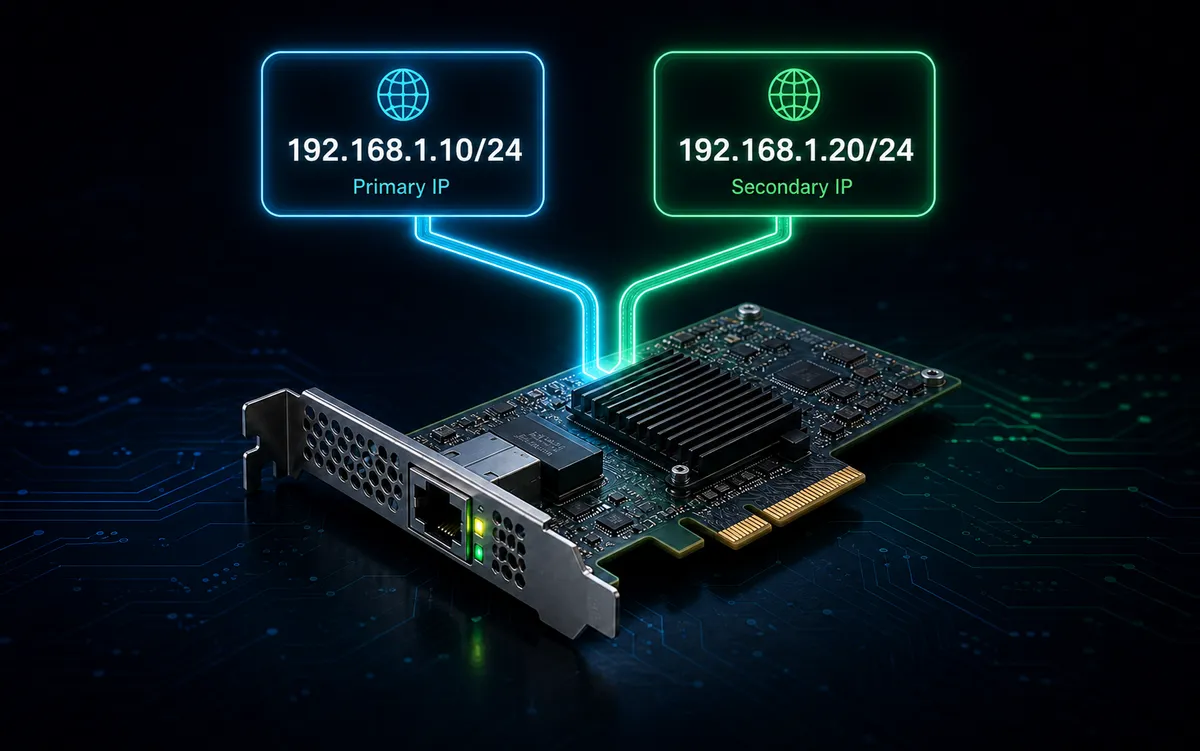
Instead of maintaining two network adapters, two routes, and two physical connections, I moved both IP addresses onto a single network interface.
The result was a simpler and more predictable configuration:
- One physical network adapter
- One network cable
- One default gateway
- Two independently usable IP addresses
- Fewer routing and application-binding surprises
Although this technique is often referred to as IP aliasing, modern Linux systems simply treat it as assigning multiple IP addresses to the same network interface.
Note
This guide uses Debian's traditionalifupdownnetworking system and the/etc/network/interfacesconfiguration file. If your distribution uses NetworkManager, Netplan, orsystemd-networkd, the concepts remain the same, but the configuration files differ.
Requirements
Before making any changes, make sure you have:
- Administrative (
sudo) access. - A static IP configuration.
- Two available IP addresses on the same subnet.
- Console access in case the network configuration fails.
- A backup of your existing network configuration.
Before You Begin
Before editing your network configuration, it's important to understand what this setup accomplishes.
Adding a second IP address does not create another physical network connection.
Instead, Linux associates multiple addresses with the same network interface.
For example:
enp4s0
├── 10.0.0.2/24
└── 10.0.0.3/24
Both addresses use the same network adapter, the same network cable, and the same default gateway.
Incoming traffic is delivered based on the destination IP address rather than which physical interface it arrived on.
This allows different services to listen on different IP addresses while sharing the same hardware.
Why Use Two IP Addresses?
A server doesn't require a separate physical adapter for every IP address.
Linux can assign multiple addresses to a single interface and respond to traffic for each one independently.
In my case, I wanted two SSH-based services to use separate addresses:
10.0.0.2:22  →  OpenSSH

10.0.0.3:22  →  Gitea SSH
Both addresses exist on the same /24 subnet and use the same physical network adapter.
From the client's perspective, they're simply two different destinations.
The Linux kernel determines which service receives the traffic based on the destination IP address and port.
Why Not Use Two Physical Adapters?
There are many legitimate reasons to install multiple network adapters, including:
- Redundancy
- Separate physical networks
- Increased bandwidth
- Link aggregation
- High availability
However, when both adapters connect to the same subnet and the only requirement is another IP address, a second interface can introduce unnecessary complexity.
Potential issues include:
- Multiple default routes
- Route metric conflicts
- Source address selection
- Applications binding to the wrong interface
- Replies leaving through a different interface
- More complicated ARP behavior
- Additional configuration to maintain
Using one adapter with multiple IP addresses removes these concerns while still allowing services to use separate addresses.
Back Up Your Existing Configuration
Before making any network changes, create a backup of your current configuration.
sudo cp /etc/network/interfaces /etc/network/interfaces.backup
If something doesn't work as expected, you can restore the original configuration from this backup.
Warning
Restarting a network interface over SSH can disconnect your session. If possible, perform the final configuration changes from a local console, IPMI, iLO, DRAC, Proxmox console, or other out-of-band management interface.
Find the Network Interface Name
Modern Linux distributions use predictable network interface names such as:
enp4s0
eno1
ens18
To display every network interface with its assigned addresses, run:
ip -br address
Example output:
lo       UNKNOWN    127.0.0.1/8 ::1/128
enp4s0   UP         10.0.0.2/24
docker0  DOWN       172.17.0.1/16
If you only want to display physical network adapters, use:
for device in /sys/class/net/*/device; do
    interface="$(basename "$(dirname "$device")")"
    ip -br address show dev "$interface"
done
If you frequently work with Linux networking, consider adding the command to your shell profile.
For example:
iphardware() {
    for device in /sys/class/net/*/device; do
        interface="$(basename "$(dirname "$device")")"
        ip -br address show dev "$interface"
    done
}
Reload your shell:
source ~/.bashrc
Then run:
iphardware
This provides a quick way to identify physical interfaces without displaying virtual adapters such as Docker bridges.
Test the Secondary Address
Before making permanent changes, assign the additional IP address temporarily.
sudo ip address add 10.0.0.3/24 dev enp4s0
Verify that both addresses are assigned:
ip -br address show dev enp4s0
Example:
enp4s0 UP 10.0.0.2/24 10.0.0.3/24
From another computer on the network, verify that both addresses respond.
ping 10.0.0.2
ping 10.0.0.3
If both addresses respond successfully, you're ready to make the configuration permanent.
Tip
The address added withip address addexists only until the interface is restarted or the system reboots.
Configure Both Addresses Permanently
Open the network configuration file.
sudo nano /etc/network/interfaces
A typical configuration looks like this:
auto lo
iface lo inet loopback

auto enp4s0
iface enp4s0 inet static
    address 10.0.0.2/24
    gateway 10.0.0.1
    dns-nameservers 1.1.1.1 8.8.8.8

    up ip address add 10.0.0.3/24 dev enp4s0
    down ip address del 10.0.0.3/24 dev enp4s0
Replace the following values with those appropriate for your environment:
- Interface name
- Primary IP address
- Secondary IP address
- Default gateway
- DNS servers
If your system manages DNS through another service, keep your existing DNS configuration rather than copying the example verbatim.
Understanding the up and down Commands
The primary address is configured using the standard address directive.
address 10.0.0.2/24
Once the interface has been brought online, ifupdown executes:
up ip address add 10.0.0.3/24 dev enp4s0
This adds the secondary address to the running interface.
Internally, the configuration now looks like:
enp4s0
├── 10.0.0.2/24
└── 10.0.0.3/24
When the interface is shut down, ifupdown executes:
down ip address del 10.0.0.3/24 dev enp4s0
This removes the secondary address, returning the interface to its original state.
Using up and down keeps the configuration simple while ensuring the additional address is automatically managed whenever the interface starts or stops.
Apply the Configuration
Once you've finished editing /etc/network/interfaces, it's time to make the changes active.
Restarting a network interface will interrupt any active network connections. If you're connected over SSH, perform this step from a local console whenever possible.
Restart the interface:
sudo ifdown enp4s0
sudo ifup enp4s0
Alternatively, reboot the system during a maintenance window:
sudo reboot
After the interface comes back online, verify that both IP addresses are present.
ip -br address show dev enp4s0
Example output:
enp4s0 UP 10.0.0.2/24 10.0.0.3/24
If both addresses appear, the configuration has been applied successfully.
How Linux Directs the Traffic
A common misconception is that Linux chooses applications based on the network interface.
In reality, the kernel makes its decision based on the destination IP address and destination port.
For example, if a client connects to:
10.0.0.2:22
Linux delivers the connection to the service listening on that address.
If another client connects to:
10.0.0.3:22
the packet arrives over the same network cable and the same interface, but Linux recognizes the different destination IP address and delivers it to the service bound to that address.
The physical interface simply receives the traffic.
The destination IP address determines which application receives it.
Bind Services to the Correct Address
Assigning multiple IP addresses to an interface doesn't automatically separate your services.
Each application should be configured to listen on the appropriate address.
For example, OpenSSH can listen only on the primary address.
ListenAddress 10.0.0.2
After making changes, verify the SSH configuration before restarting the service.
sudo sshd -t
Containerized applications can also bind to a specific host address.
For example, a Docker container exposing SSH on the secondary address:
ports:
  - "10.0.0.3:22:22"
This allows multiple services to use the same port number while remaining completely independent because each listens on a different IP address.
Verification
Before considering the configuration complete, verify the following:
- ✅ Both IP addresses appear on the interface.
- ✅ Both addresses respond to network traffic.
- ✅ Each service is listening on the correct IP address.
- ✅ Applications are reachable from another computer.
- ✅ The configuration survives a reboot.
If all of these checks pass, your configuration is complete.
Benefits
Using one network adapter with multiple IP addresses provides several advantages:
- One physical network adapter
- One network cable
- One default gateway
- Simpler routing
- Easier troubleshooting
- Independent service addresses
- Cleaner firewall rules
- No same-subnet adapter conflicts
For servers that simply need additional service addresses, this is often the simplest and most maintainable solution.
Limitations
This configuration does not provide:
- Adapter redundancy
- Additional physical bandwidth
- Automatic failover
- Network isolation
- Load balancing
If those capabilities are required, consider technologies such as network bonding, VLANs, multiple routing tables, or physically separate networks.
Final Thoughts
Using multiple IP addresses on a single network interface is often simpler than installing multiple adapters on the same subnet.
In my own environment, moving both addresses onto one interface eliminated routing ambiguity while still allowing different services to use dedicated IP addresses.
The final design is straightforward:
One adapter
One cable
One gateway
Two IP addresses
For servers that require multiple service addresses—but not multiple physical network paths—this approach provides a clean, predictable, and easy-to-maintain solution.
About This Guide
Although this article uses Debian's traditional ifupdown networking system, the underlying networking concepts apply to most modern Linux distributions.